
Step 1: Verify Plugin Access
Before installation, confirm with your Kontainer account manager that the Figma plugin is included in your plan and activated for your Kontainer environment.
Step 2: Install the Plugin in Figma
-
Open Figma.
-
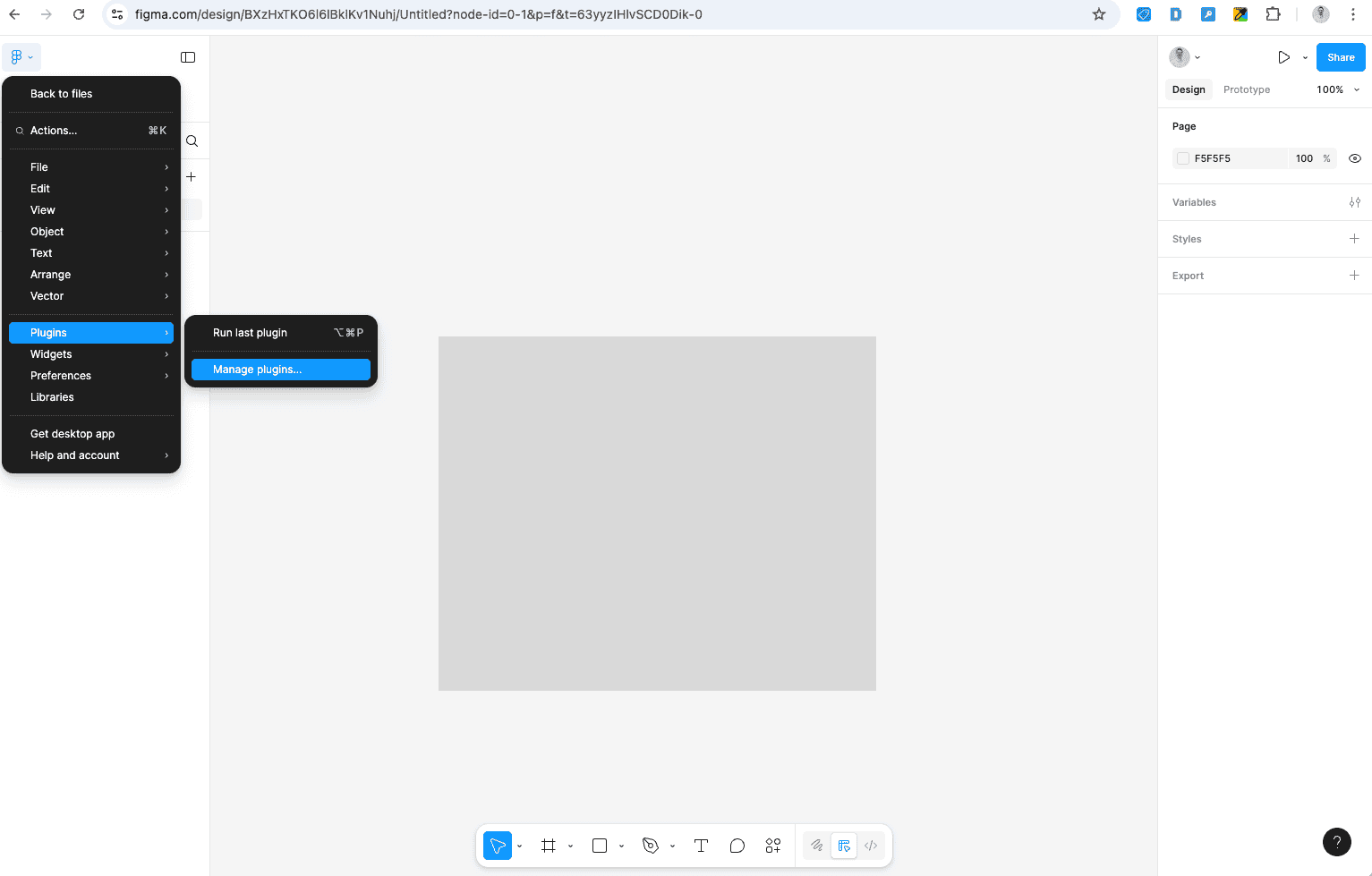
In the top-left menu, go to Plugins → Manage Plugins.
-
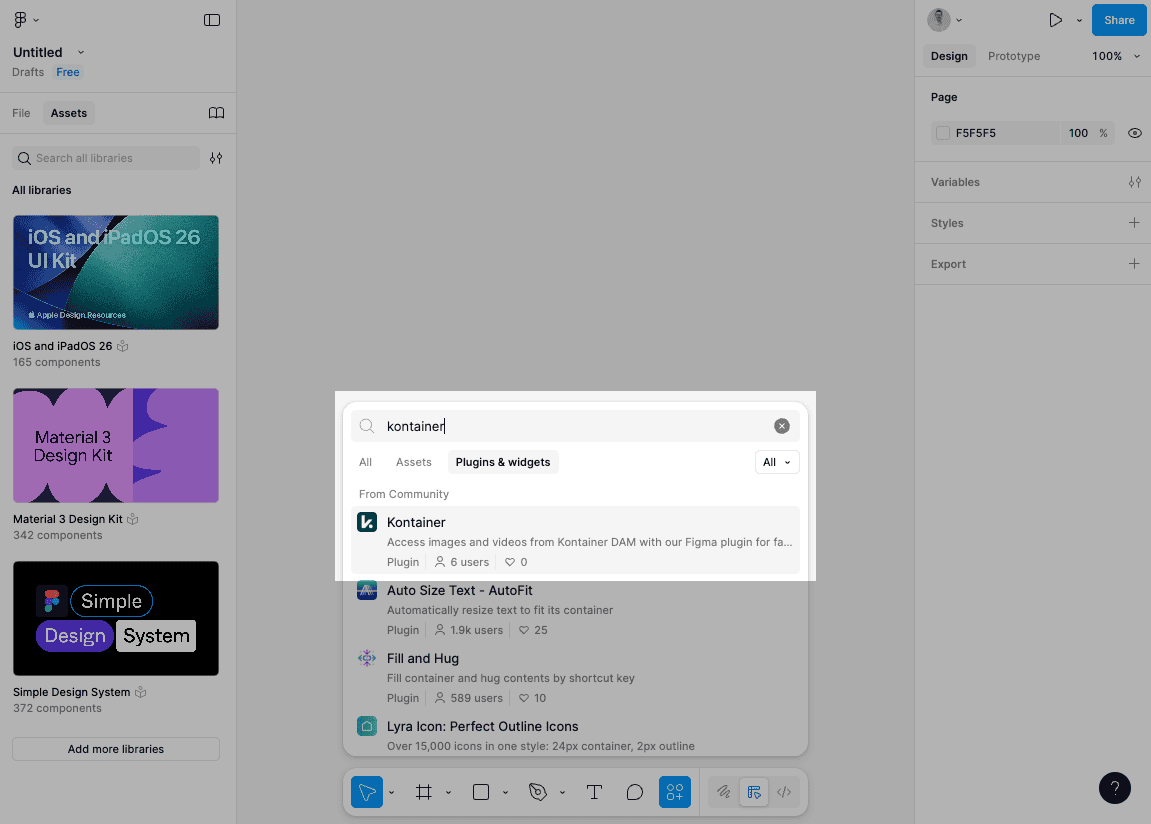
Search for “Kontainer”.
-
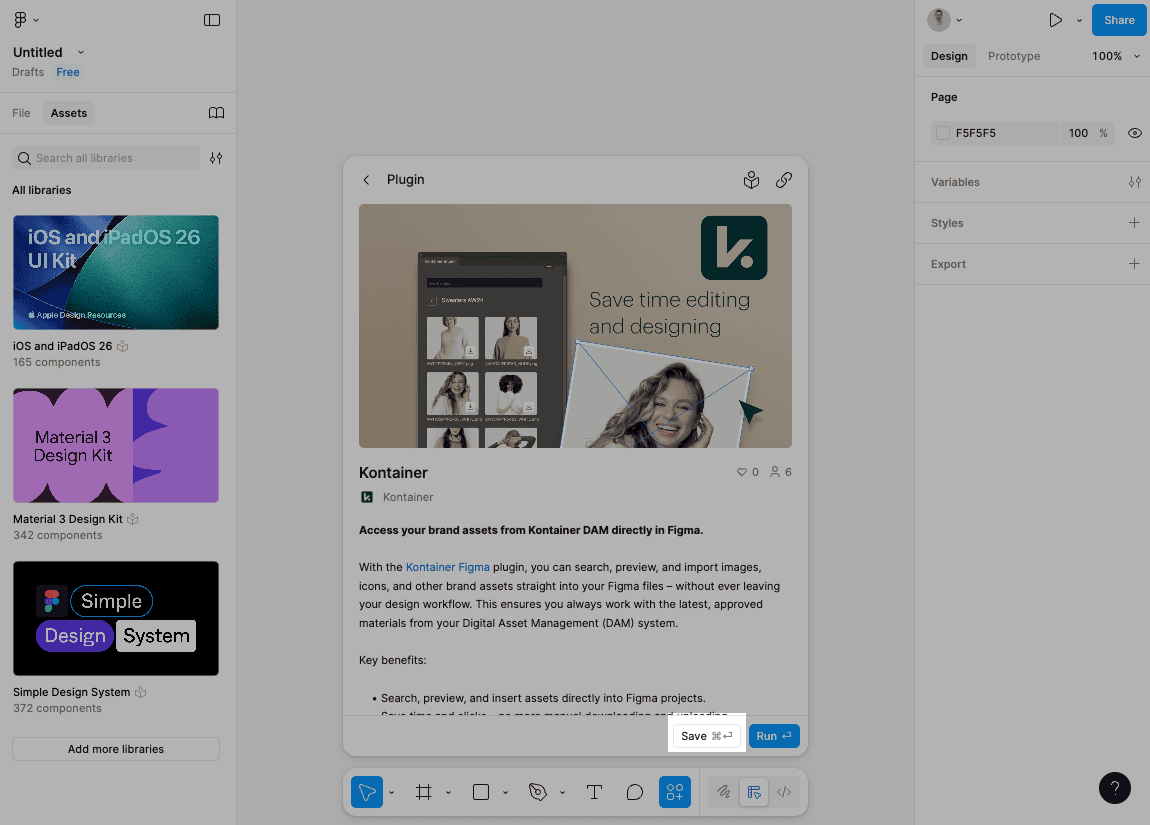
Click Save to add the plugin to your list of saved plugins.
Step 3: Configure the Plugin
-
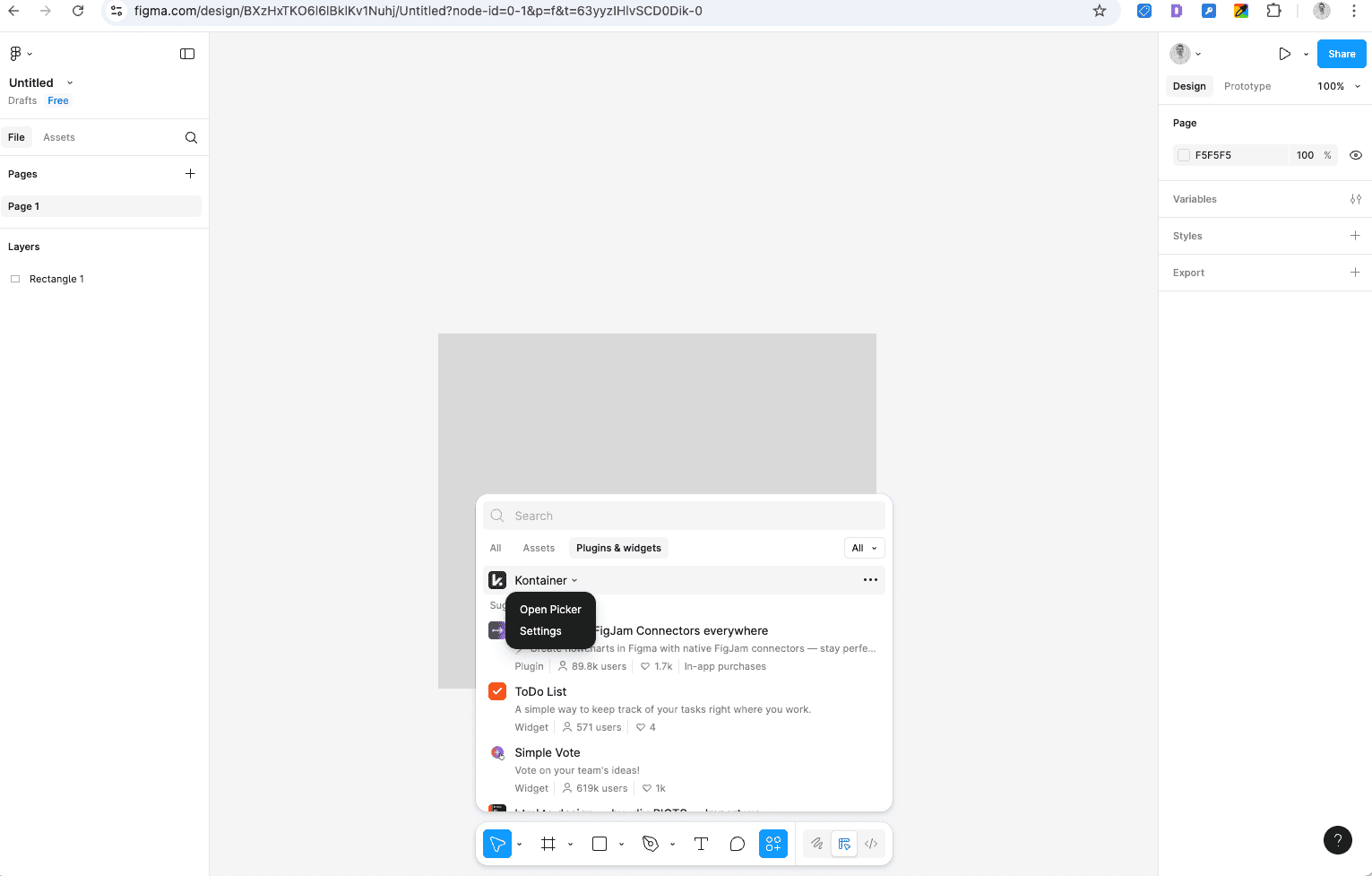
Run the Kontainer plugin.
-
Select Settings.
-
Enter your Kontainer domain in the format:
yourcompany.kontainer.com(omithttps://).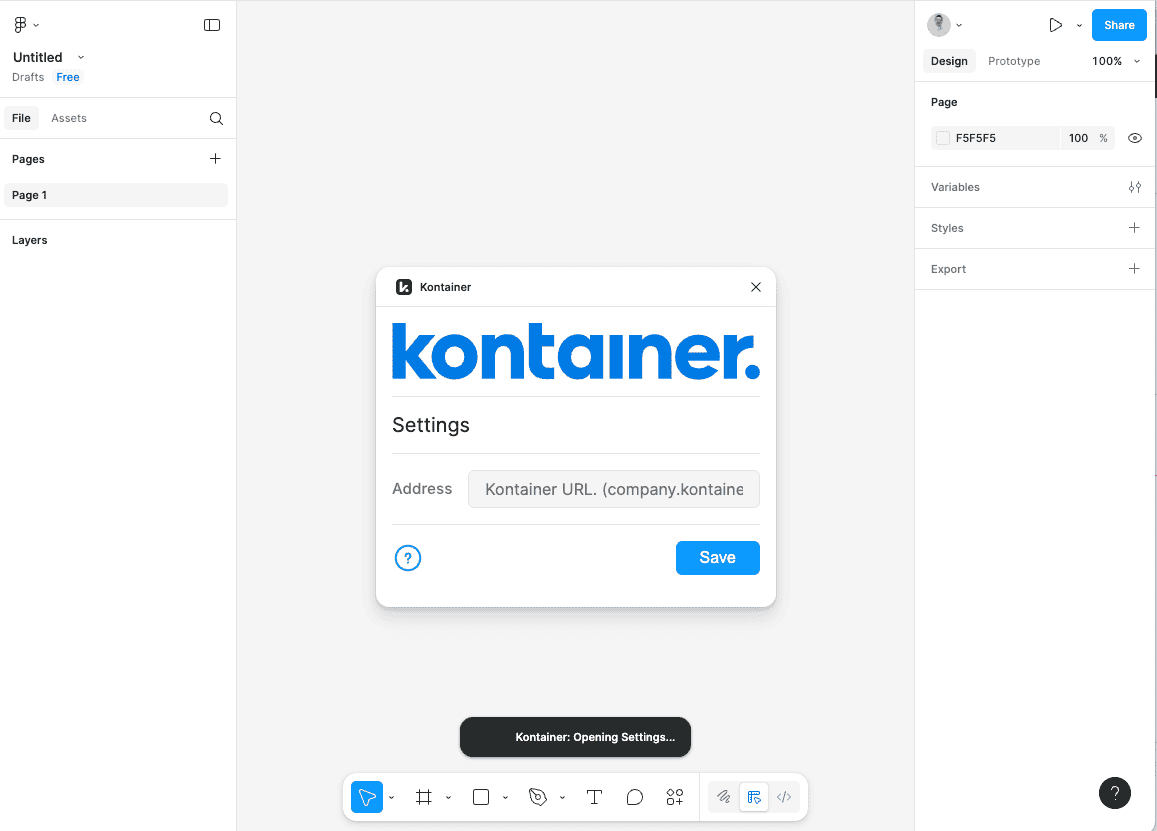
Once saved, your setup is complete.
Step 4: Use the File Picker
-
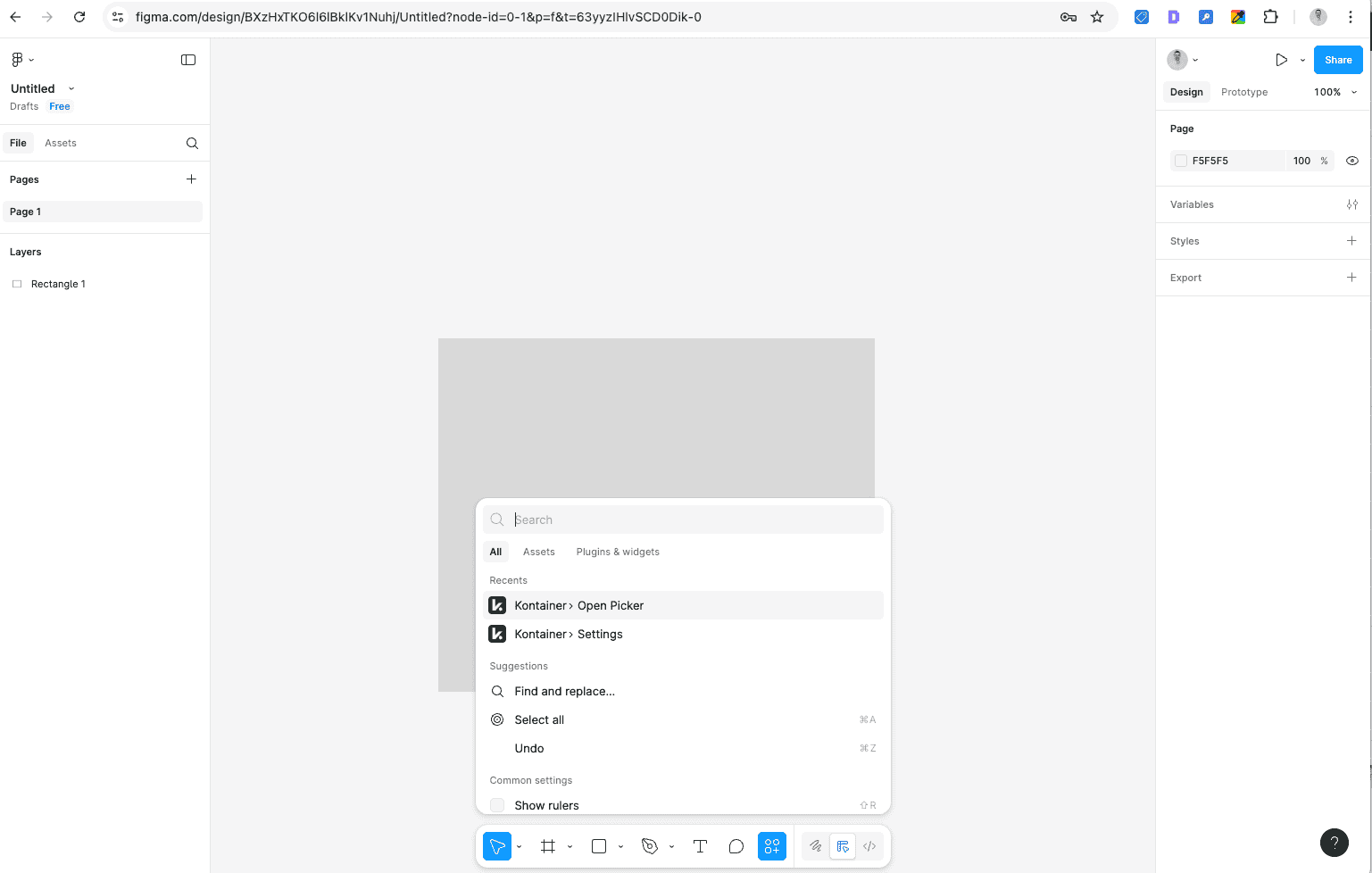
Open the Kontainer plugin and select Open Picker.
-
The plugin can also be accessed quickly via the Plugins & Widgets icon in Figma’s bottom bar.
-
On first use, log in with your regular Kontainer username and password.
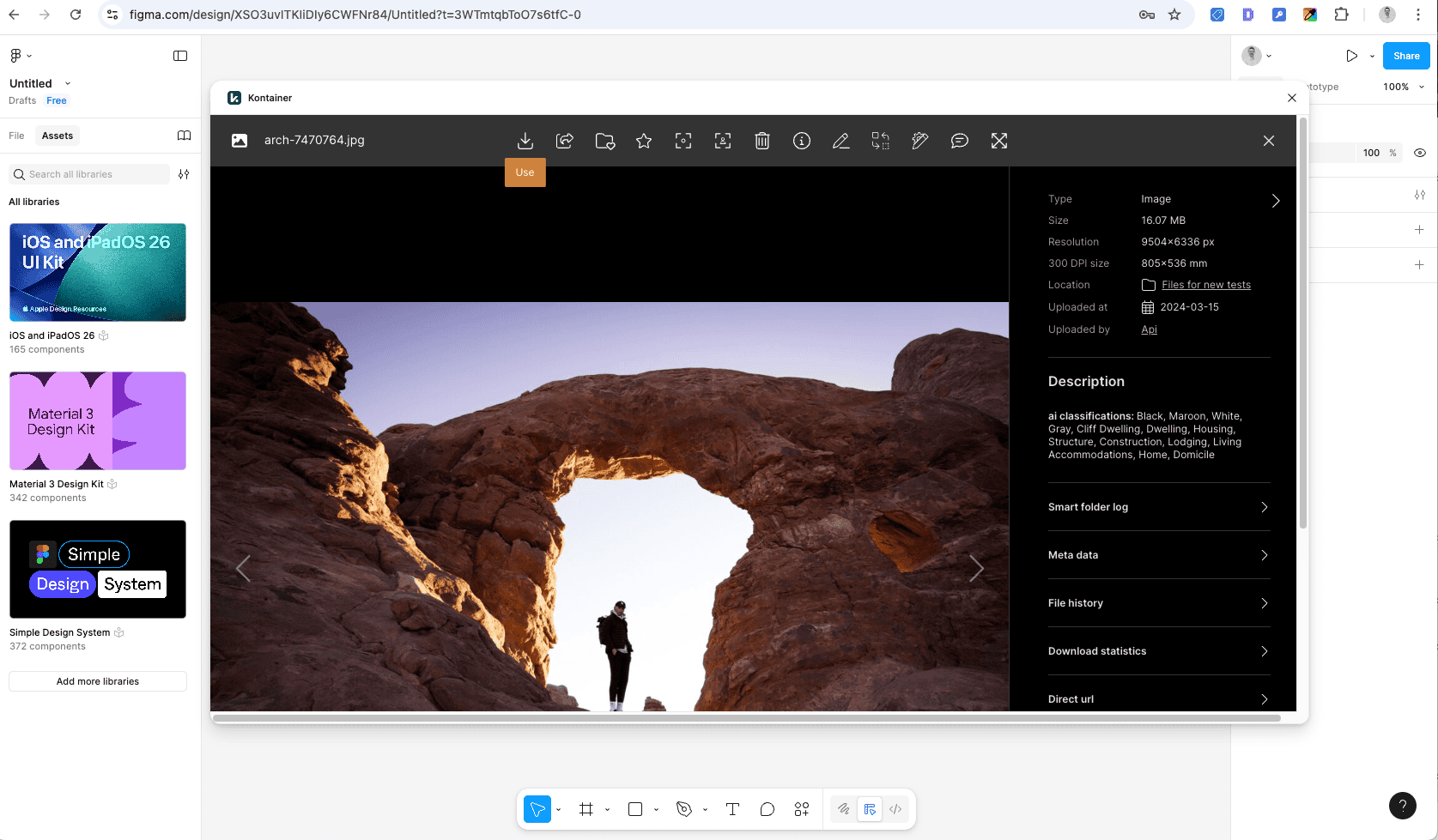
You can now browse your Kontainer files as usual. Instead of downloading a file, select Use to insert it directly into your Figma project.
Additional Features
-
Custom Cropping: Apply custom or predefined cropping templates from Kontainer before inserting files.
-
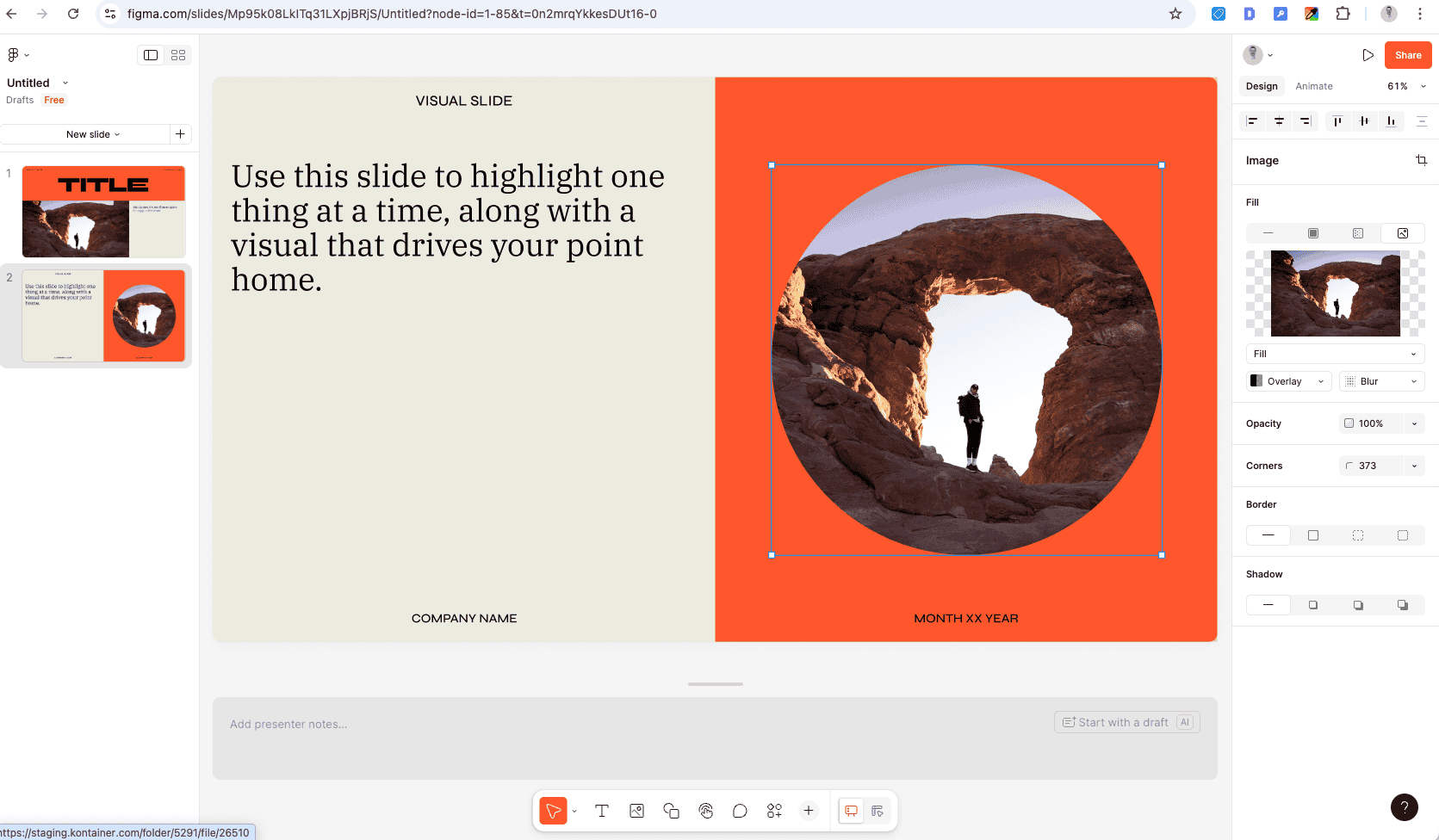
Insert into Shapes: To paste a file directly into a Figma shape, select the shape first, then open the Kontainer file picker.
Functionality notes
This filepicker works for all Figma applications, such as FigJam and Slides.
Embedding video files is also supported.