Hiding the Folder Menu by Default
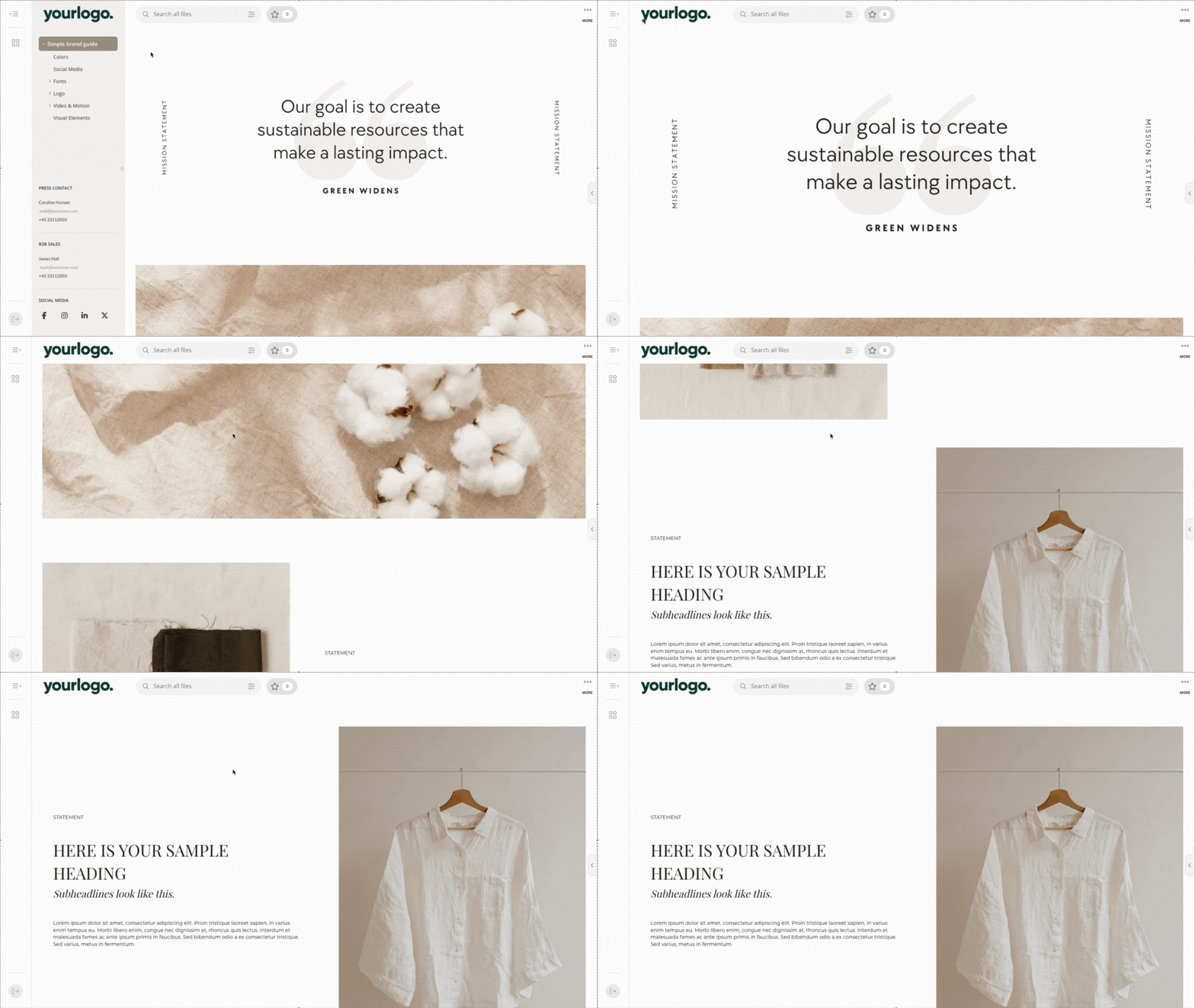
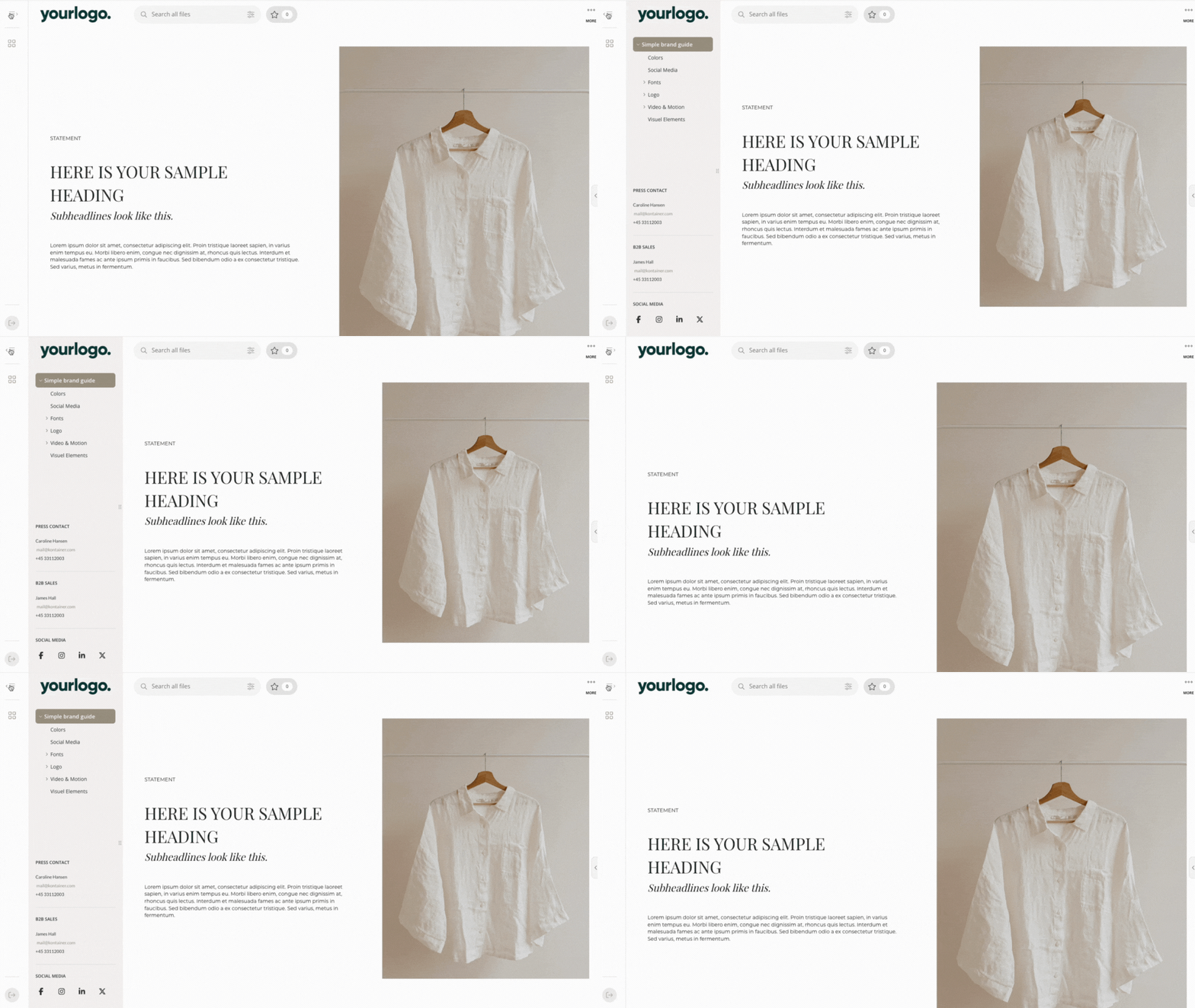
You can choose to hide the folder menu on the left-hand side by default for selected users. This creates a cleaner and more focused interface for viewing your Kontainer content.
This option is especially useful when setting up brand or reseller portals, or when sharing links with external users.
All users can still manually expand or collapse the folder menu at any time.
How to Set the Folder Menu to Hidden by Default
You can enable this setting in two ways:
-
For permanent user accounts:
Go to any non-admin user account (including open portals), open the user settings, and enable “Hide menu.”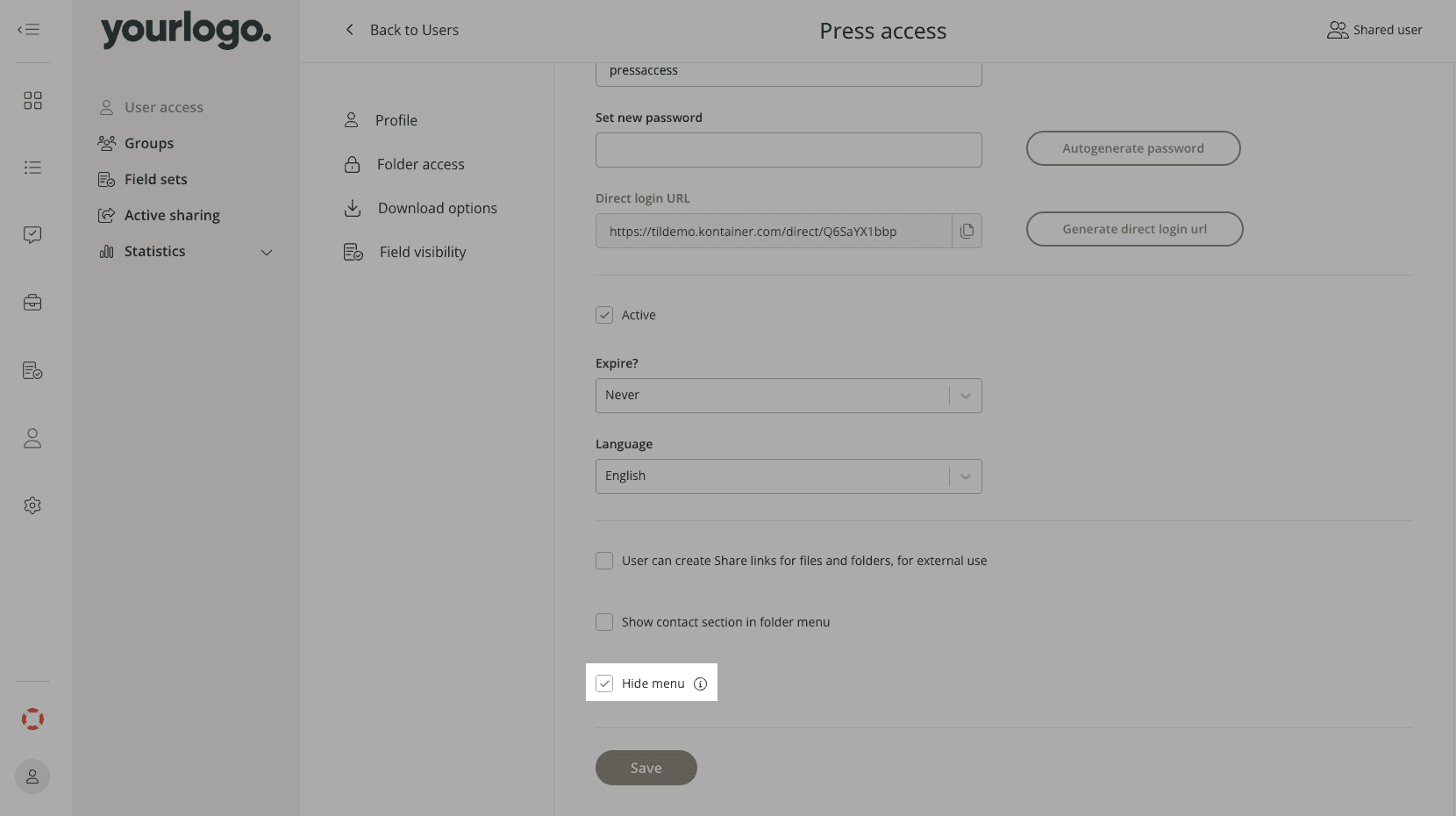
-
For share links:
When creating a share link in Kontainer, enable “Hide menu.”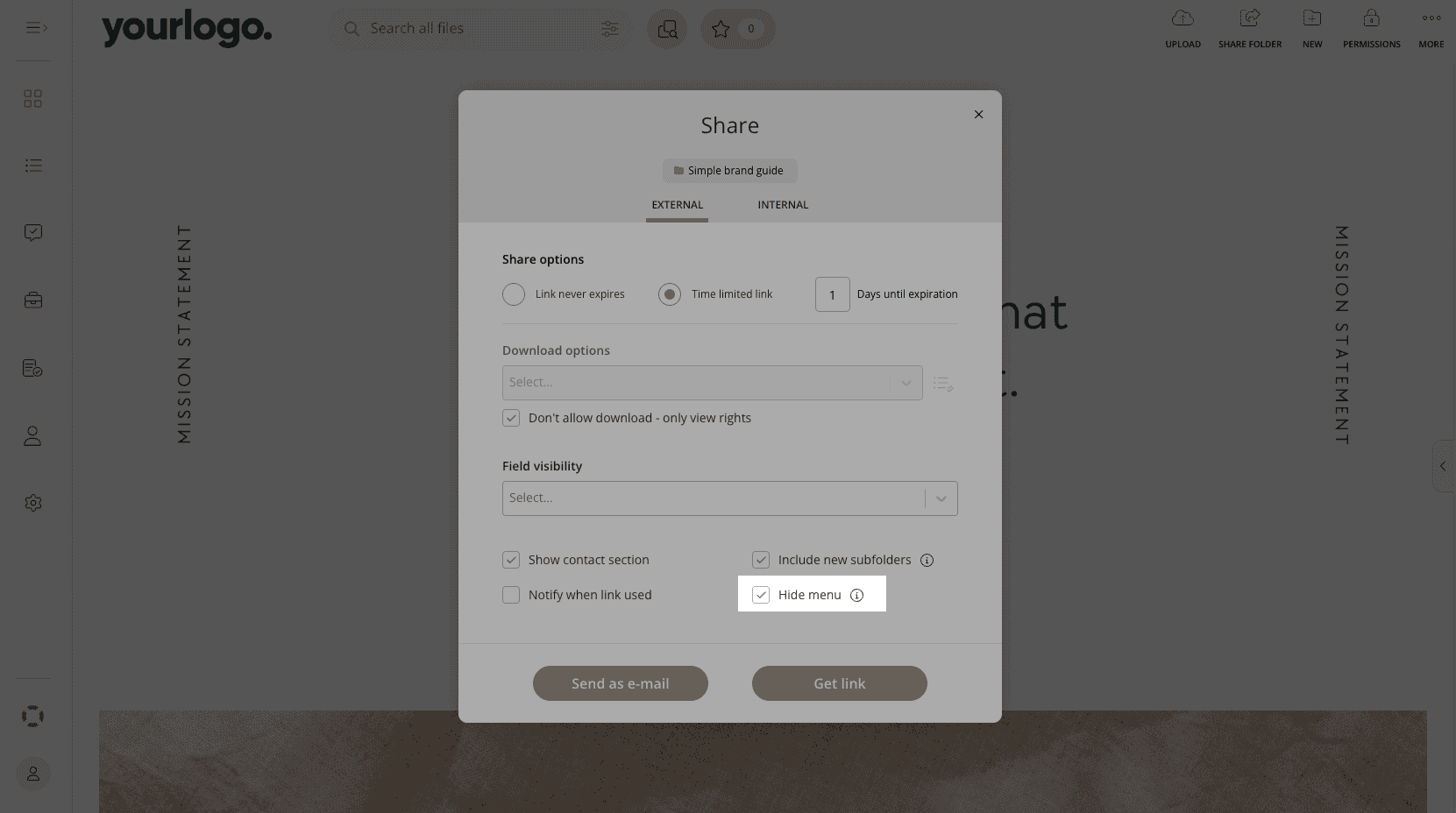
This will set the hidden menu as the default view for those users or links. Users can always reveal the menu later by clicking the icon in the top-left corner.
Adjusting Your Logo for Different Backgrounds
In some cases, the folder menu background and the main content background may have contrasting colors.
For example, a bright logo that appears clearly on a dark folder menu might become less visible when the menu is hidden and the bright main content background is shown.
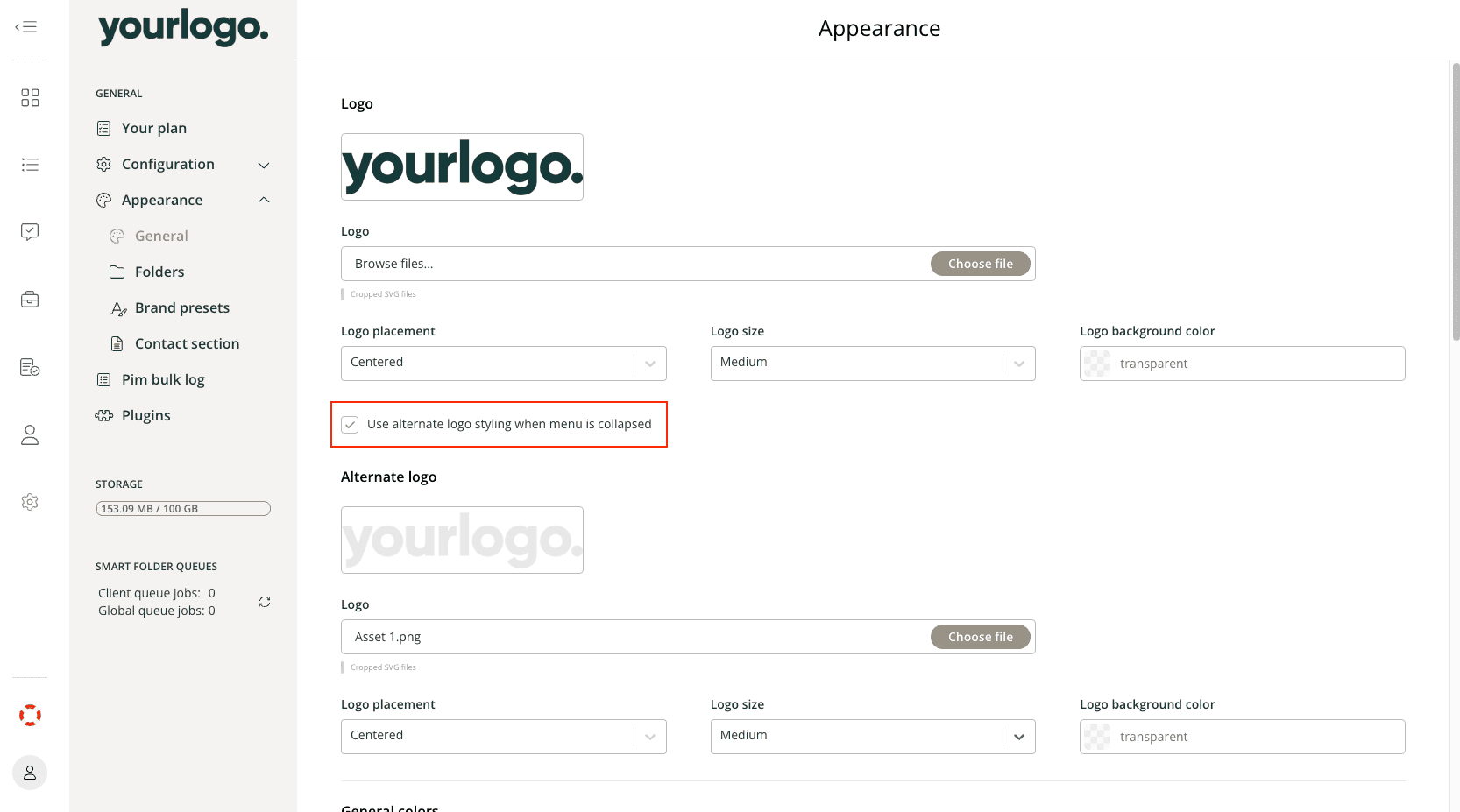
To address this, you can upload an alternative version of your logo that suits the alternate background color.